
 Polski
 Čeština
 Slovenčina
 Deutsch
 Italiano
 Español
Product feed: what it is and how to create and implement it
Running a Google Ads campaign or listing products on several marketplaces at once? If so, you’ve probably noticed that typing in every product by hand, one by one, in every system is a road to nowhere. With 50 products, it’s still manageable. With 500, not so much. This is exactly where a product feed comes in: a file that, once it’s been set up properly, does the job for you, automatically and with no involvement on your part. It’s what makes your products appear in Google Shopping, in Facebook ads or in a marketplace catalogue in the first place. Without it, your campaign simply won’t launch, no matter how much money you pour into it.
 Wojciech PiszczekCEO & Founder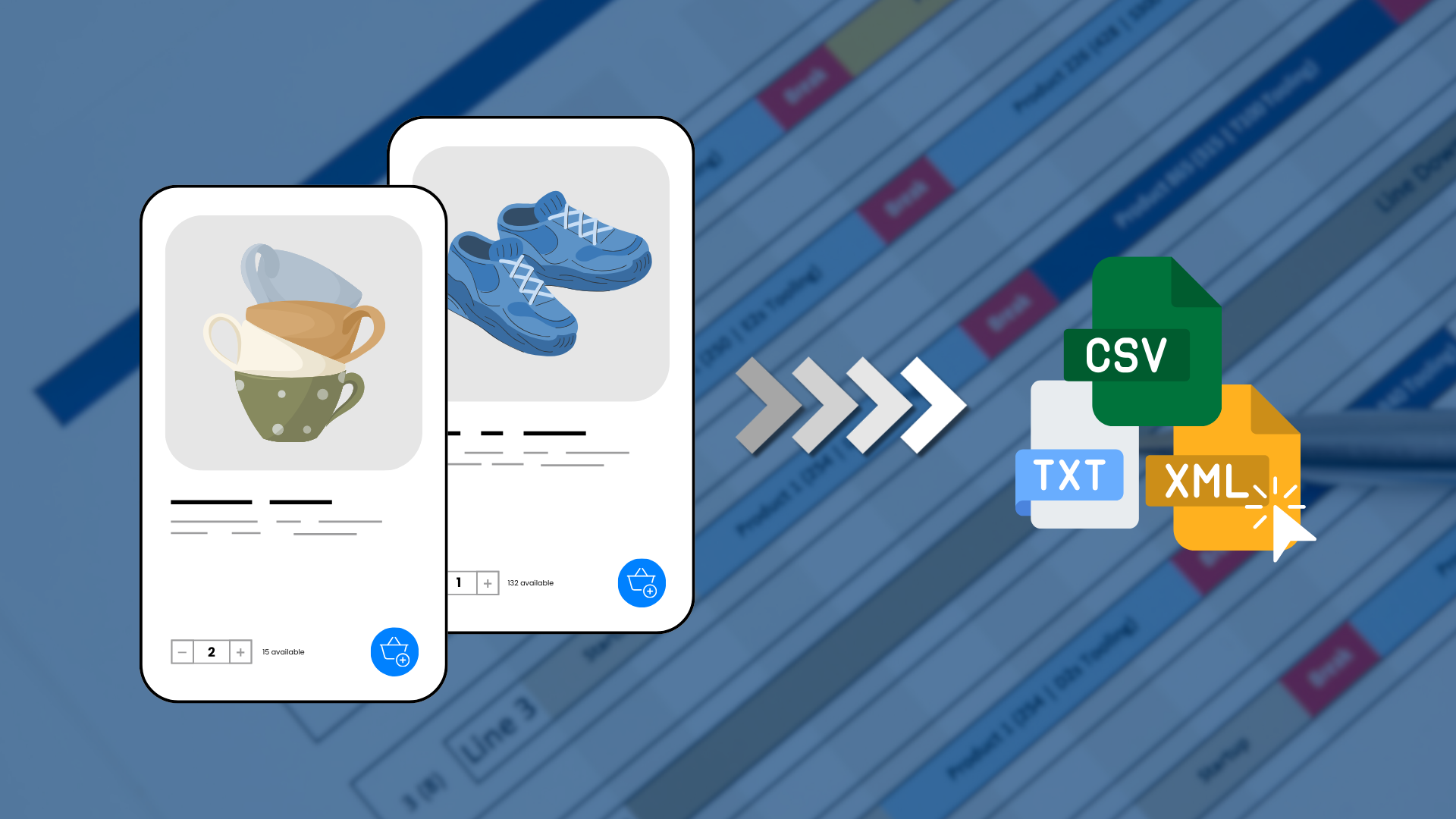
What is a product feed?
A product feed is a file containing data on all your products, which you send to Google Ads, Facebook, a marketplace or a price comparison site. It includes the name, price, description, image, availability and other attributes of each product, all in a single, structured format. Without it, the advertising platform has no way of getting information about what you offer.
It’s a bit like an electronic wholesale catalogue, except that instead of landing on a salesperson’s desk, it goes straight to an algorithm. Google, Facebook and Allegro don’t click through your shop by hand or read the descriptions on your website. Instead, they download the feed file, usually in XML or CSV format, and use it to build ads and display offers in search results.
How does a product feed work?
A product feed works like an automated courier: it collects product data from your shop and regularly delivers it to the advertising platform or marketplace. You update a price or stock level once, in one place, and the system passes the change on by itself. You don’t have to click anything manually in Google Ads or Facebook. Connecting a shop to its sales channels in this way is one of the things covered by e-commerce consulting.
In practice, it looks like this: the shop generates the file (usually automatically, via a plugin or an ERP system), the file is published at a specific URL, and the platform fetches it at regular intervals, usually once a day. If you change a product’s price in your shop, the feed updates at the next fetch and the ad then shows the new price.
The biggest risk here is delay. If the feed refreshes once a day but you change your prices several times a week, the ad will show out-of-date information for a while. Google does pick up on this and can reject the listing because of it, which we cover in more detail later in this article.
What should a good product feed contain?
A good product feed must contain a complete set of data that clearly identifies each product and allows it to be compared with competitors’ offers. A single missing attribute, such as the GTIN, can be enough for the verification system to reject the entire product. That’s why, before you submit your feed, it’s worth going through a checklist of mandatory fields.
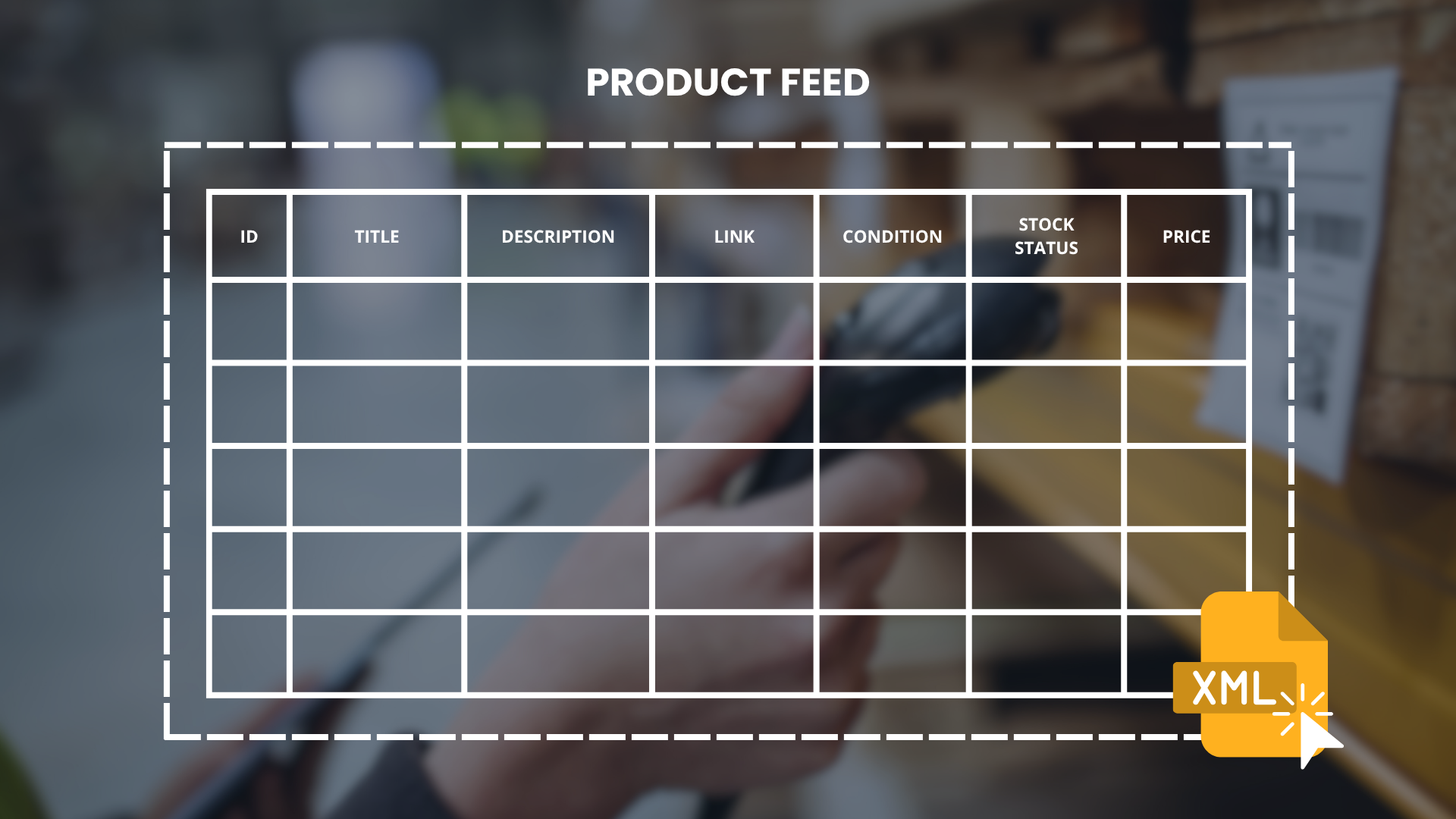 Each row of the feed describes one product, and each column is an attribute that the platform reads.
The table below shows the attributes that every professional feed should include, whether it’s going to Google Ads, Facebook or a marketplace.
Attribute | Required? | Example |
|---|---|---|
Product ID | Yes | SKU-2024-001 |
Title | Yes | Men’s cotton T-shirt, black, size L |
Description | Yes | A short, specific description of features and uses |
Price | Yes | PLN 89.99 |
Availability | Yes | in stock / out of stock |
Product link | Yes | Direct URL to the product page |
Main image | Yes | Product on a white background, min. 800x800 px |
GTIN / EAN | Yes (or MPN) | 5901234123457 |
Category | Recommended | Clothing > Men’s T-shirts |
The more of these fields you fill in accurately, the lower the risk of rejection and the more closely your ad will match the customer’s search.
Which file formats does a product feed support?
Product feeds most often come in three formats: XML, CSV and TXT, and the choice between them depends mainly on the target platform and the system you use. Google Merchant Center and Facebook Commerce Manager accept all three, so in practice what matters is how easy it is to generate the file on your side.
XML is the most versatile and is usually the default in ready-made plugins for Shoper (a Polish e-commerce platform), WooCommerce and PrestaShop. Its clear tag structure makes it easier to diagnose when something isn’t working. CSV works well when you export data manually from Excel or an ERP system, because literally any spreadsheet application can open it. TXT is less common, but some older integrations and price comparison sites still require it.
There’s no single ‘better’ format. What counts is that it meets the requirements of the specific platform and is generated automatically, without a manual export every time you change a price.
How do you create a product feed step by step?
Creating a product feed is a process made up of a few simple, repeatable steps, most of which can be automated right from the first implementation. Below, we break it down the way we handle it on our clients’ accounts.
- Gather your product data. Compile titles, descriptions, prices, images, EAN codes and stock levels for all your products.
- Fill in any missing attributes. Check that every product has all the mandatory fields from the table above.
- Choose a file format. Decide whether to generate XML, CSV or TXT, depending on the target platform.
- Generate the feed file. Use a shop plugin, an ERP system or a dedicated feed management tool.
- Upload the feed to the platform. Add the file’s URL in Google Merchant Center, Facebook Commerce Manager or the marketplace’s seller panel.
- Check for errors and warnings. Go to the diagnostics tab and fix everything the platform has flagged as a problem.
Once this stage is complete, the feed should start powering your campaigns automatically, without you having to step in manually every time a price or stock level changes.
How do you set up a product feed in Google Ads?
You don’t set up a product feed for Google Ads directly in Google Ads itself, but in Google Merchant Center, which you then link to your advertising account. First, you need to create a Merchant Center account and confirm and verify your website address, and only then can you add the feed file at a specific URL or upload it manually.
Once you’ve added the file, Google spends some time verifying the data, checking that prices, availability and images match what’s shown on your shop’s website. If everything checks out, the products are given ‘approved’ status and can be used in Performance Max campaigns or classic Google Shopping campaigns. You can link your Merchant Center account to Google Ads in a few clicks, in the linked accounts section of the settings.
It’s worth setting the file to be fetched automatically once a day, or ideally more often if your prices or stock levels change rapidly. Infrequent refreshes are one of the more common causes of data mismatches and rejections.
How do you use a product feed on Facebook?
On Facebook, you upload your product feed to Meta Commerce Manager, where you create a product catalogue and connect an XML or CSV file to it, exactly as you would in Google Merchant Center. Using this catalogue, Facebook automatically generates dynamic ads, which pick the right product for each individual user based on their past behaviour.
That’s a big difference from Google: there, the feed powers search; here, it powers dynamic ads on social media that reach people who, for example, viewed a particular product but didn’t complete their purchase. In fact, you can use the same feed file in both Google Merchant Center and Meta Commerce Manager, as long as it meets the requirements of both platforms.
Bear in mind that Facebook checks images and price consistency just as strictly as Google does. A product ad with an out-of-date price in the feed may be paused or simply stop being shown, even though the campaign is technically running.
How do you generate a product feed in Shoper?
In Shoper, you generate a product feed from the admin panel, in the section for integrations with price comparison sites and advertising systems, with no need to code the file by hand. Shoper has ready-made feed templates built in for specific platforms, including Google Merchant Center and Facebook, so all you need to do is choose the right format and the platform will generate an up-to-date file at a fixed URL by itself.
You then paste this URL into Google Merchant Center or Meta Commerce Manager as the data source. Shoper updates the file at regular intervals, so changes to prices or availability in your shop’s admin panel are reflected in the feed without any input from you.
The one thing to remember is to fill in additional attributes, such as the GTIN or the Google product category, directly in each product’s settings in Shoper. The feed template on its own won’t invent this data for you if you haven’t entered it into the system first.
Summary
The product feed rarely gets the attention it deserves. It’s treated as a technical detail, something that ‘somehow just works’ in the background of a campaign. Yet this is the very file that decides whether your product even stands a chance of appearing, before anyone gets to judge the image, the price or the competition’s offer.
The biggest difference between shops that sell a lot and those fighting for every conversion often doesn’t come down to the advertising budget. It comes down to data. A well-organised, up-to-date feed is the foundation on which an effective campaign can be built in the first place.
Want to check whether your product feed is working as it should? Book a free consultation with Raise Your Sales. We’ll analyse your feed file, point out the errors that are costing you sales and show you how to fix them.
Did you find this article helpful?
This article has no ratings yet — be the first.
Autor
Wojciech Piszczek
CEO & Founder
I’ve been immersed in e-commerce for more than ten years, with a core focus on helping brands scale onto international platforms like Amazon, eBay, Kaufland, and eMAG. My experience covers the entire sales lifecycle—from high-level strategy and logistics to marketing and conversion optimisation. I help businesses not only enter new markets but scale sustainably, ensuring they avoid the costly pitfalls often faced by those just starting out.