
 Polski
 Čeština
 Slovenčina
 Deutsch
 Italiano
 Español
Amazon reviews: 4 legal ways to get them
You can get Amazon reviews legally in four ways: with the “Request a Review” button in Seller Central, with a tool that sends the same official Amazon request automatically, through the Amazon Vine programme and with good customer service.
 Wojciech PiszczekCEO & Founder
What Amazon does prohibit is offering incentives for reviews, such as discounts, free products or refunds. It also bans asking family, friends and employees for reviews, buying reviews from third-party websites and contacting customers outside Amazon’s channels. In this guide, which is up to date as of 3 November 2026, we show you how to use each of the permitted methods and what to avoid so that you do not put your account at risk.
Without customer reviews and ratings, even a good product gets lost in the search results, and at launch it is hard to collect even one or two reviews. We see this with the clients we help launch on Amazon. On Amazon.de, the bin bags made by PAM-FOLIE now have a rating of 4.5 out of 5 from 696 reviews, and the company’s advertising cost relative to total sales (TACoS) has fallen below 8%. The client puts these reviews down to the quality of the bags and responsive customer service rather than to any tricks, and that is a good starting point for the whole topic.
Why are Amazon reviews so important?
Amazon reviews work as social proof. Shoppers trust other shoppers more than a seller’s own description, so a product with hundreds of reviews and a high average rating looks like a safe choice, while a listing with no reviews raises doubts about whether the product matches its description and whether the seller can be trusted. Star ratings are also the first filter a customer sees, right in the search results, before they even open the listing.
What matters is not only the average rating but also what customers actually write about. On many marketplaces Amazon shows a short AI-generated summary above the reviews that pulls together the most common comments from buyers, so a single recurring complaint can end up right at the top. For anyone selling on Amazon, credible reviews are therefore a key part of running an e-commerce business: they affect sales performance, make potential customers more likely to buy and shape the shopping experience that the platform rewards with visibility.
Reviews also affect sales indirectly. A better rating raises the conversion rate, and Amazon’s algorithm favours products that sell well, so over time visibility and order numbers grow, and with them the chance of further reviews. A good reputation also helps you win the Buy Box and lowers your advertising costs: an Amazon Ads campaign that sends shoppers to a listing with zero reviews or a weak rating burns through the budget, because the clicks do not turn into purchases.
Finally, product reviews are free market research. Positive reviews tell you what customers value most, so it is worth carrying those points over into the title, the bullet points and the images, which is where good Amazon product photography comes in. Negative ones show what to improve in the product, the packaging, the instructions or the description itself, so that future customers do not run into the same problem.
Which ways of getting reviews comply with Amazon’s rules?
Three routes comply with Amazon’s rules: the “Request a Review” button (including requests sent automatically by a tool), the Amazon Vine programme, and good customer service with a neutral leaflet in the parcel. Anything that links a review to a benefit or bypasses Amazon’s channels is prohibited, because Amazon has a zero-tolerance policy on review manipulation. In a post on Amazon’s review policies, an Amazon employee gives examples of prohibited practices. On the permitted side, the post points to the “Request a Review” button, which sends the buyer a message generated by Amazon, to the Vine programme for sellers whose brand is enrolled in Brand Registry, and to a focus on product quality, accurate listings and good customer service. The rules on leaflets in parcels are set out in a separate Amazon guide to product inserts.
Allowed | Not allowed |
|---|---|
Sending a request with the “Request a Review” button, once per order | Offering a discount, a free product, a refund or any other benefit in exchange for a review |
Enrolling a new product in the Amazon Vine programme | Asking for an existing review to be changed or removed, whether in a message, in a leaflet or outside Amazon |
Putting a thank-you note, your brand story or instructions for use in the parcel | Asking for a positive rating in a leaflet or including a coupon for a review in it |
Replying to customers through Amazon’s messaging | Contacting customers outside Amazon’s channels to ask for a review |
Solving a customer’s problem, for example by replacing the product or issuing a refund | Asking family, friends or employees for reviews |
Using tools that send Amazon’s official request | Buying reviews from websites and groups that sell them, or using “review clubs” |
Are you allowed to encourage customers to leave a review?
Yes, but only in a neutral way. Amazon’s guidelines apply to every Amazon seller, even when you do not explicitly ask for a positive rating: a benefit linked to a review is a violation in itself. The seller is responsible for leaflets and packaging, even if an external agency produced them, and in its guide to inserts Amazon requires all stock packed with a leaflet that breaks the rules to be removed from the FBA warehouse.
Method 1: the “Request a Review” feature
The simplest and safest way to get your first reviews is the “Request a Review” button, which lets you ask for a review once for each order, usually between about 5 and 30 days after delivery. When you click it, Amazon emails the buyer on your behalf, asking them to rate the product and the seller, and, according to the notice in Seller Central, it automatically translates the request into the language the customer has set. This means you do not write a message of your own, where prohibited wording can easily slip in.
In the same pop-up, Amazon reminds you that its systems already ask customers for reviews at no cost, and that sending several requests for one order goes against its policies. By clicking the button, you also agree not to send an additional review request for that order through Buyer-Seller Messaging. You can only send the request within a set window after delivery, which in our experience usually runs from about 5 to 30 days, and outside that window Seller Central will not let you send it.
How do you request a review, step by step?
- Go to your orders. In Seller Central, open the menu, choose Orders and then Manage Orders.
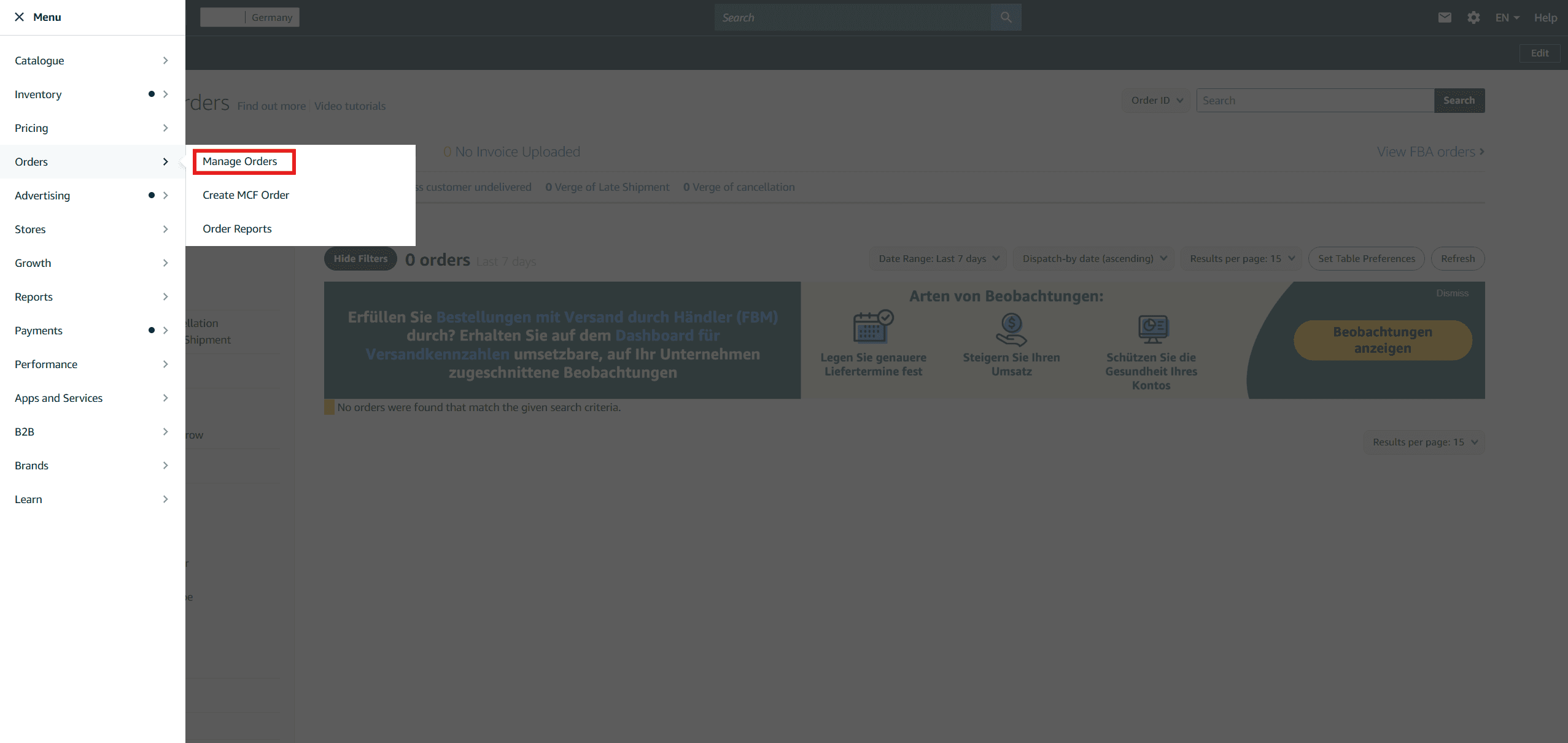 The Orders menu in Seller Central with the Manage Orders option
- Find the order. Search for it by order number or pick it from the list, making sure that a few days have already passed since delivery.
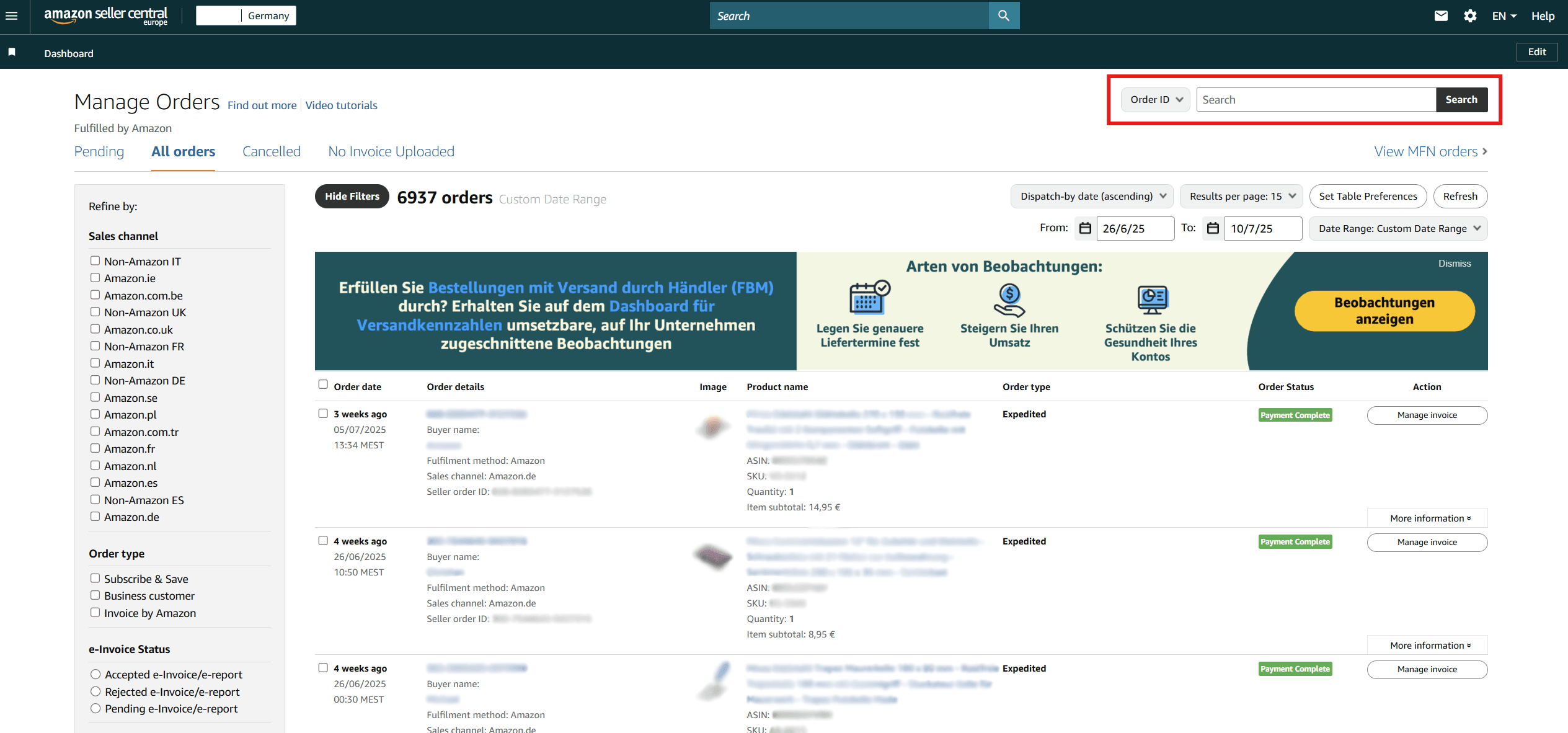 Searching for an order by Order ID in the Manage Orders view
- Open the order details and click “Request a Review”. The button sits in the top right-hand corner of the order details view in Seller Central and sends a request for a product review and a seller rating.
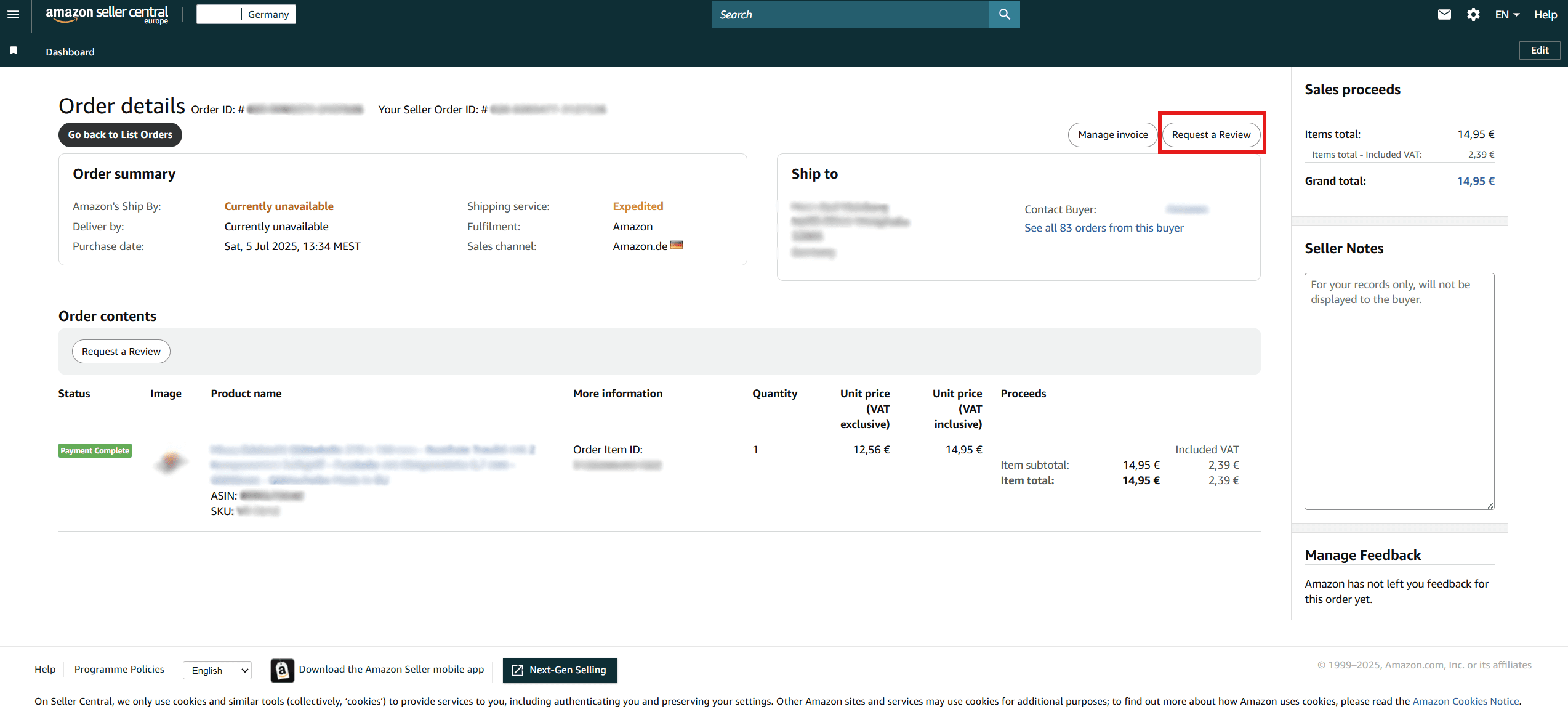 The “Request a Review” button in the order details
- Confirm the request. In the pop-up asking whether you are sure you want to request a review for this order, click Yes.
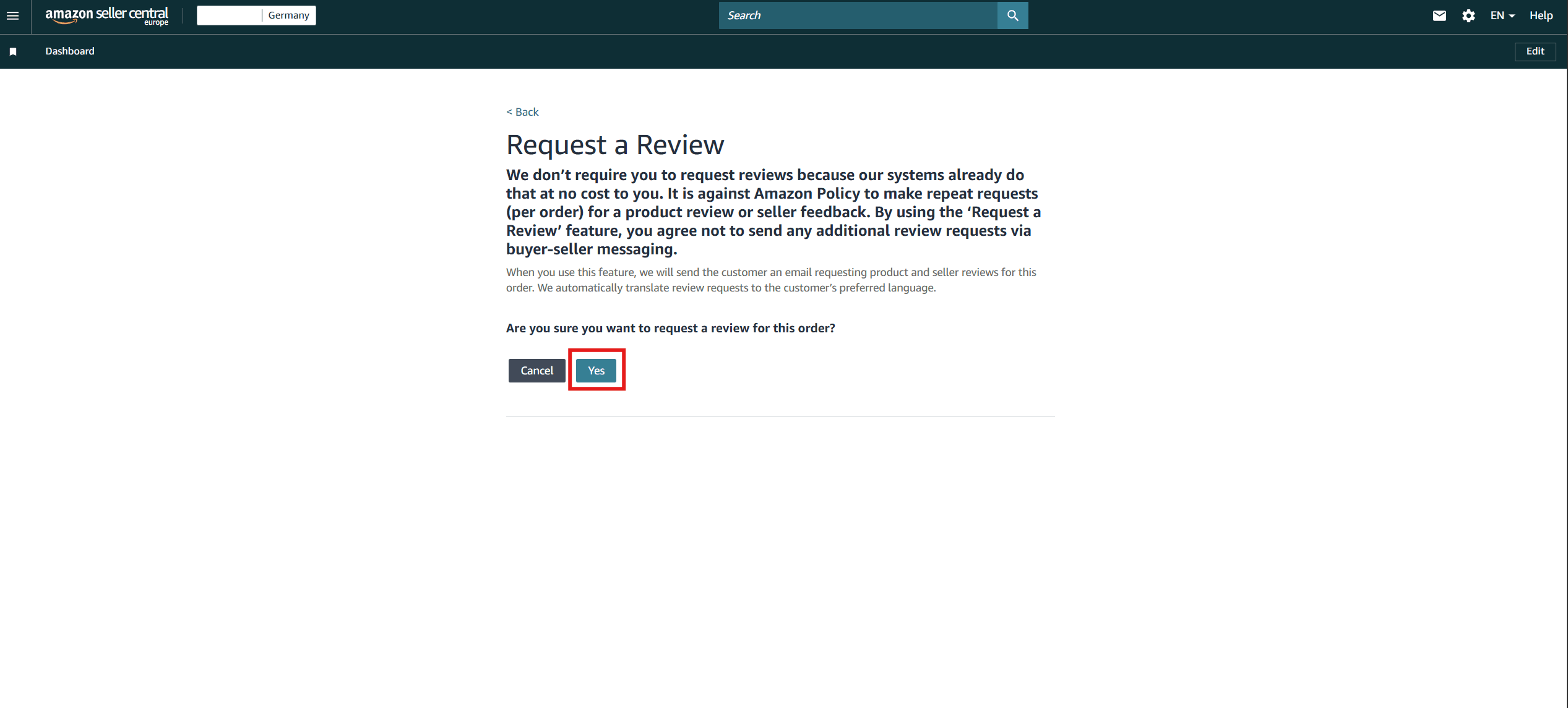 Confirmation window: clicking Yes sends the review request
- That’s it. Seller Central confirms that Amazon will request a review for this order. Do not send a second request for the same order.
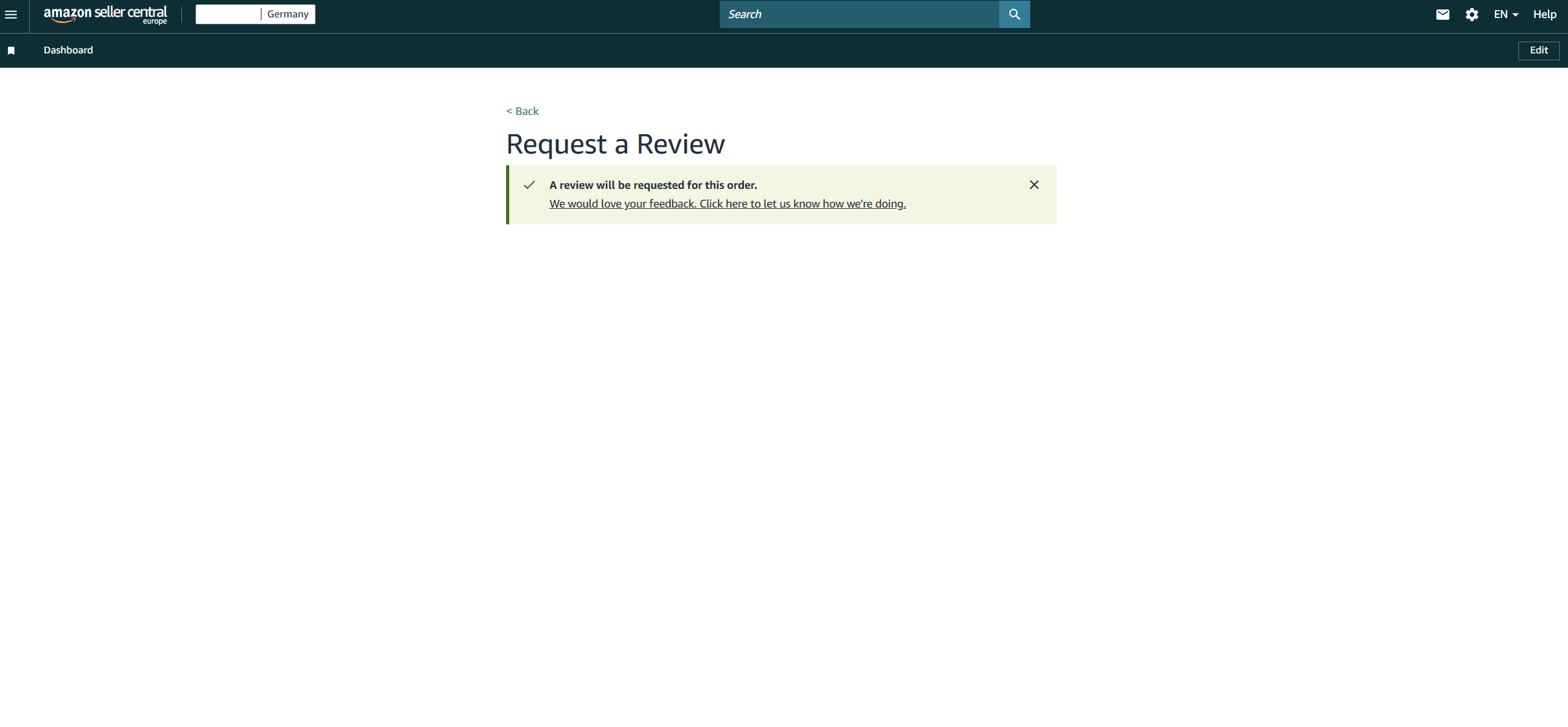 Confirmation in Seller Central: Amazon will request a review for this order
Not every customer will leave a review, but sending requests consistently for every eligible order builds a steady stream of reviews over time. With a few orders a day, doing it by hand is enough; with hundreds, it is worth thinking about automation.
Method 2: automated review requests and when they are safe
Automating review requests is only safe when the tool triggers the same official Amazon request as the button in Seller Central, once for each order. Clicking through hundreds of orders by hand takes a lot of time, which is why some sellers use the Follow-Up module in Helium 10. The safe option in this tool is the “Request a Review” template, which, according to the tool’s own description, asks for a review using Amazon’s message template.
Are custom messages asking for a review allowed?
The same module also lets you send your own messages, for example to customers who have returned a product. That is a different situation: a custom message must not contain a request for a positive rating or any benefit in exchange for a review, and if a request has already gone out for an order through Request a Review, you must not send another one. In its post on review policies, Amazon prohibits, among other things, soliciting positive reviews through third-party services and contacting customers outside approved channels, so the seller, not the tool, is responsible for the content of every message.
How do you set up an automated request in Helium 10?
Menu names can change, so check the steps below against the current version of the dashboard.
- Open the Follow-Up module. In the Helium 10 menu, choose Follow-Up and then the Email Automation tab.
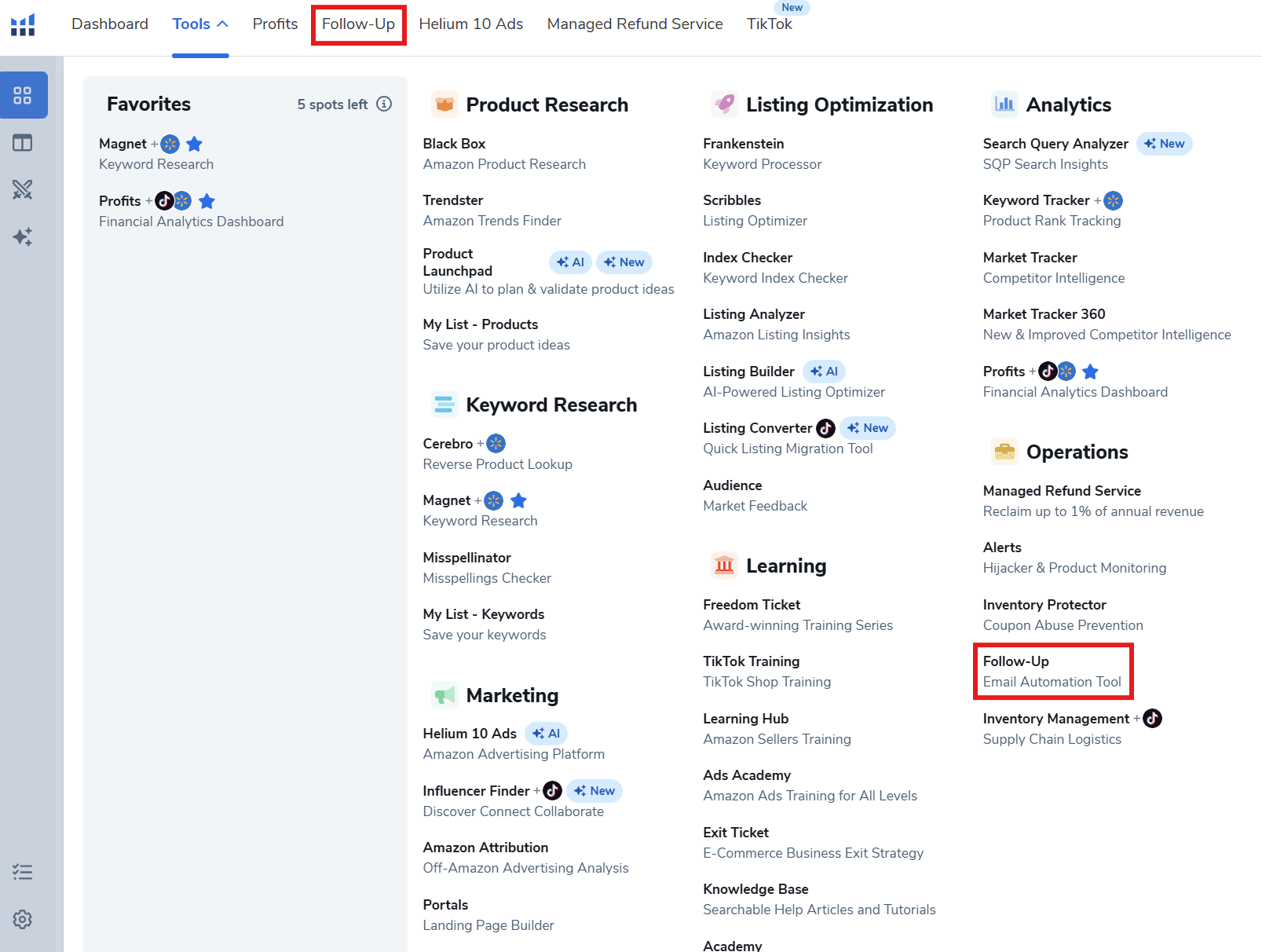 The Follow-Up module in the Helium 10 menu
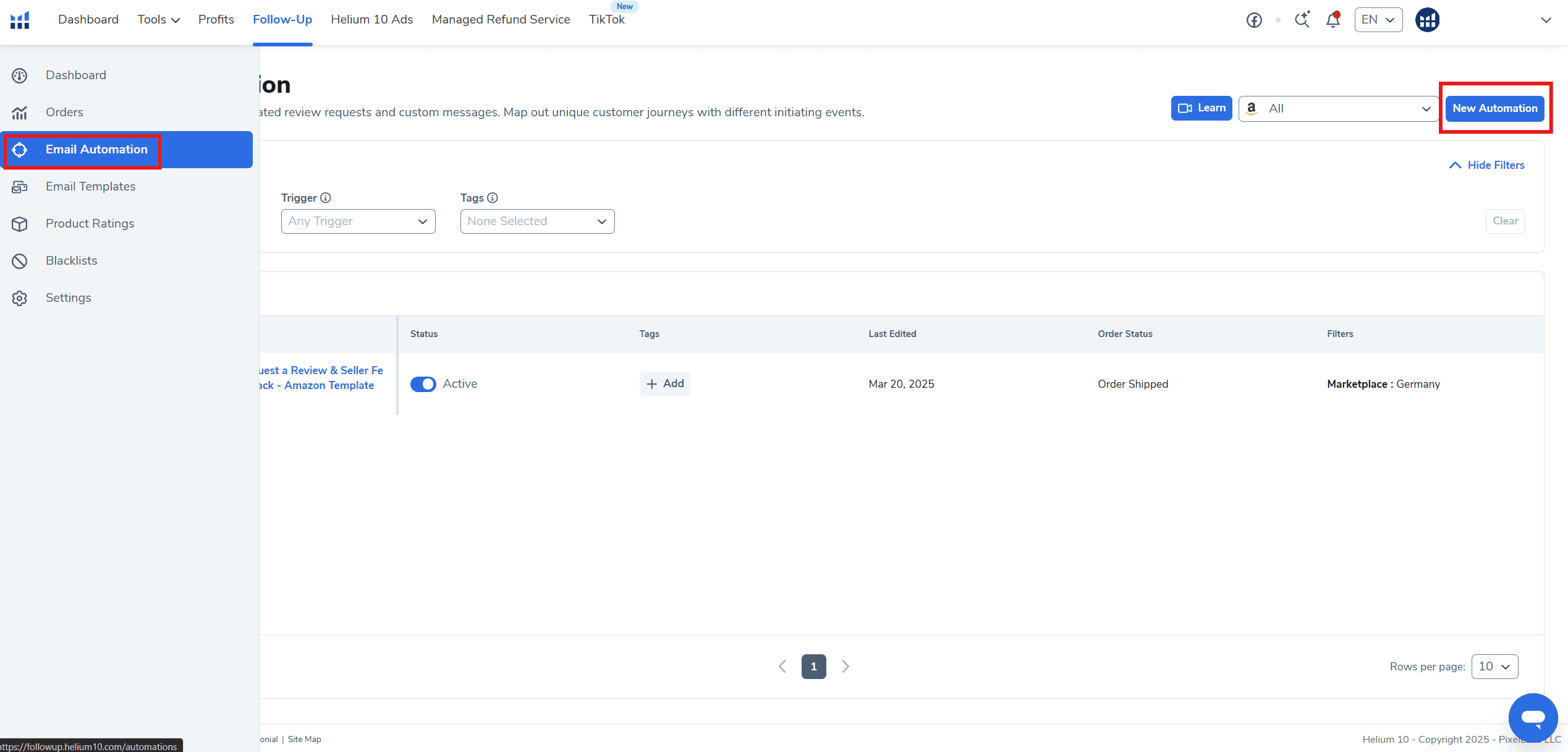 The Email Automation tab and the New Automation button in Helium 10
- Choose the “Request a Review” template. Click New Automation and choose the Request a Review template, rather than building an automation from scratch or using the templates for returns.
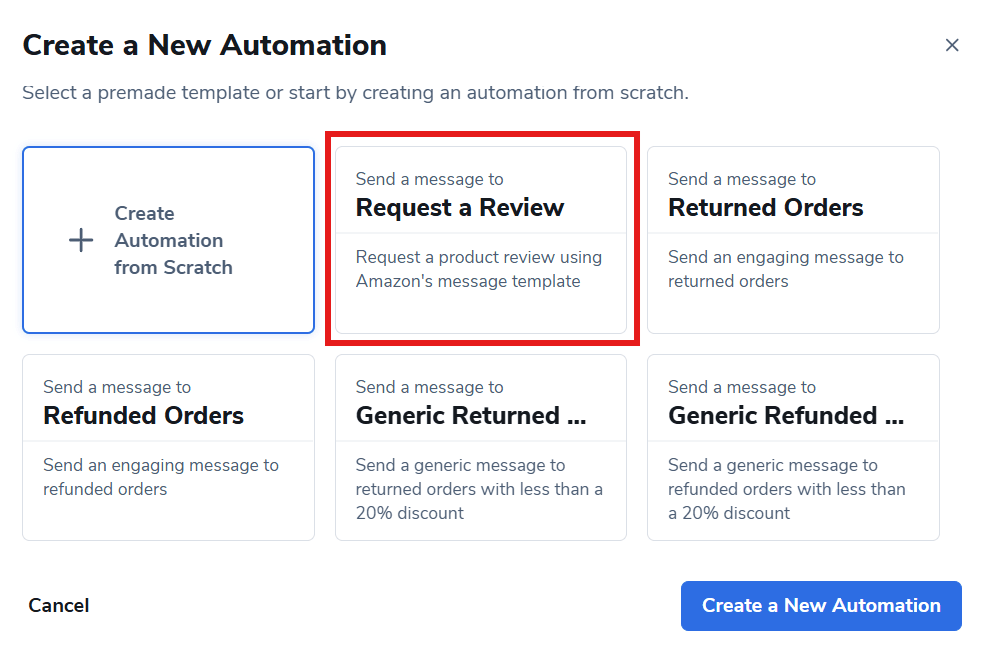 The Request a Review template in the Create a New Automation window
- Set the Order Filters. The filters decide which orders receive the request. The sample template skips orders with a discount of more than 30%, and you can add further conditions, such as the marketplace.
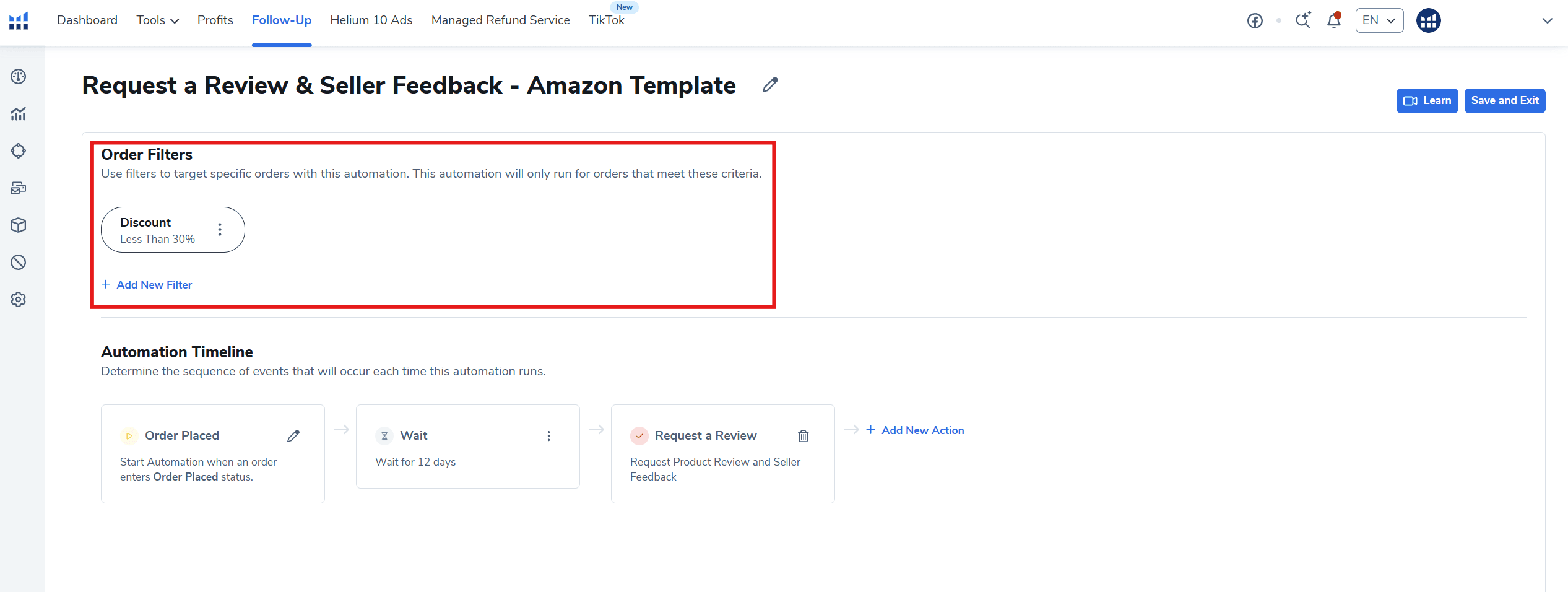 Order Filters: discount less than 30%
- Check the Automation Timeline. In the example, the automation starts with Order Placed, waits 12 days and then sends a request for a product and seller review. Set the waiting time so that the customer has had time to receive and try the product, and so that the request falls within the window in which Amazon allows it.
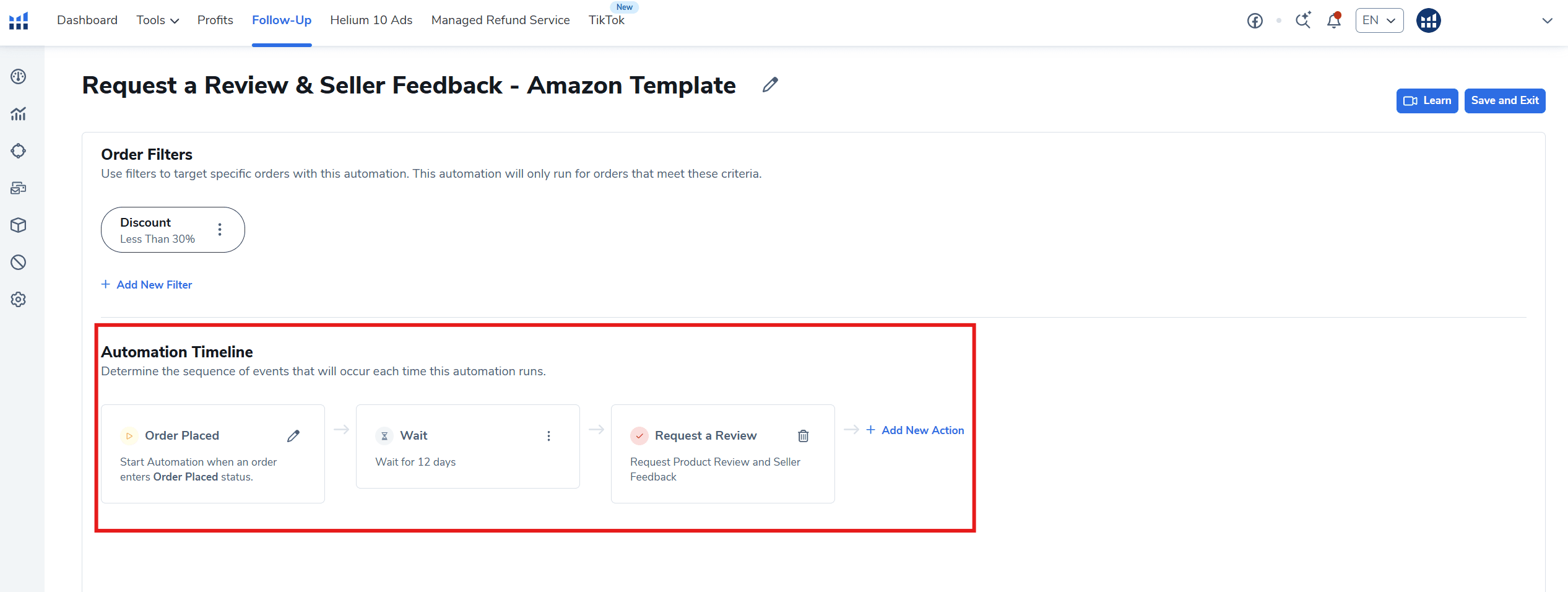 Automation timeline: order placed, a 12-day wait and the review request
- Save the automation. Click Save and Exit. From then on, the request goes out for every order that matches the filters.
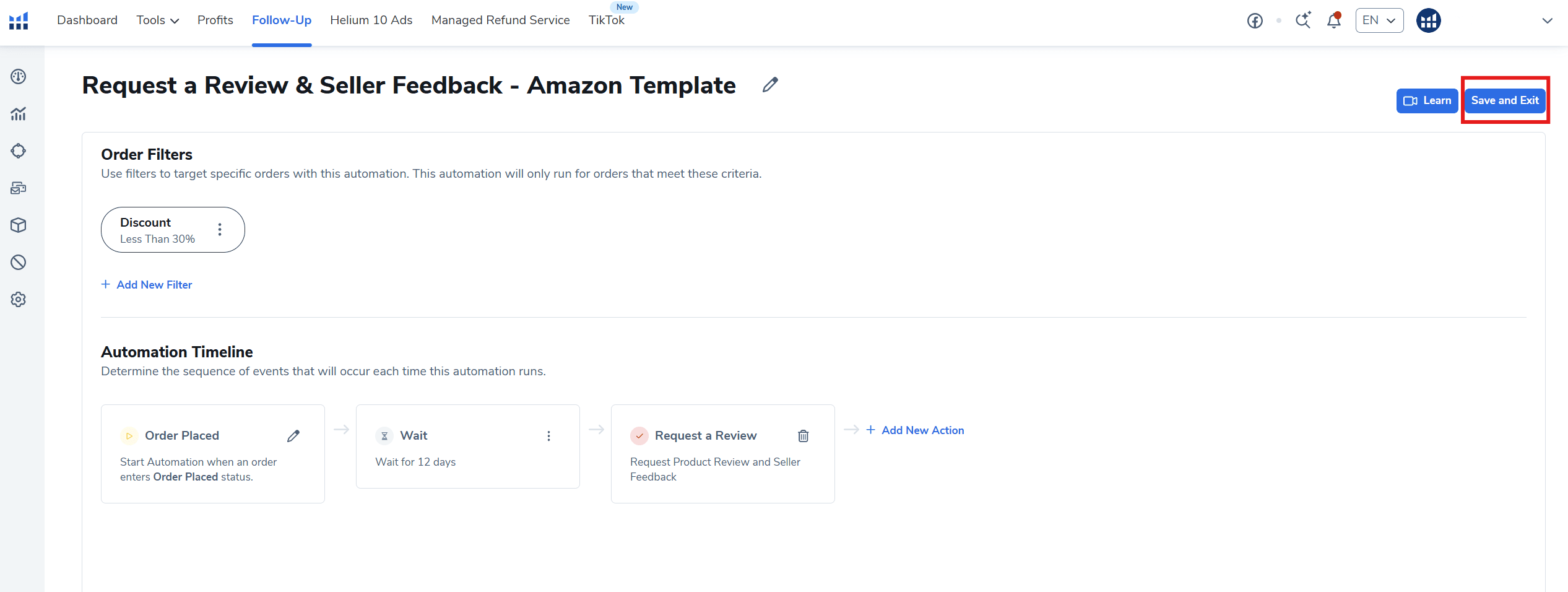 The Save and Exit button saves the automation
The tool saves time, but it does not increase the number of requests, because you can only send one per order anyway. Its advantage is consistency: no order gets missed, and the request always goes out at the same, tried-and-tested time.
Method 3: the Amazon Vine programme and reviews from trusted testers
Amazon Vine is a programme in which Amazon sends up to 30 units of a new product to trusted reviewers, and on EU marketplaces it costs from €0 to €170 per product. It is an answer to the difficult start that a new product faces without reviews, when customers land on the listing, see zero reviews and buy from a competitor instead. We write more about the programme itself in our guide to Amazon Vine. Its members are Vine Voices, reviewers whom Amazon itself invites based on the value of the reviews they publish on Amazon. Amazon matches your product with reviewers who have purchase history and expertise in the relevant category. Reviewers receive the products free of charge and in return publish an honest, independent review whose content you cannot influence, so it can be negative too. According to the Vine programme page, products enrolled in Vine sell 30% better on average, although these are Amazon’s own figures rather than a guarantee for every product.
Who can use Amazon Vine?
You need a Professional seller account and offers fulfilled by FBA, as well as either a brand enrolled in Amazon Brand Registry, in which you hold the brand representative role, or unbranded products in the catalogue. The product must have an FBA offer, fewer than 30 reviews, an image and a description. Adult products, digital products and bundles are not eligible for the programme.
How much does Amazon Vine cost on EU marketplaces?
According to the Vine programme page, the fee is charged per parent product, with no extra charge for variations.
Units per product | Fee on EU marketplaces |
|---|---|
up to 2 units | €0 |
3 to 10 units | €70 |
11 to 30 units | €170 |
Amazon only charges the fee once 30 days have passed since you enrolled the product and the first review has been published, and if no Vine review appears within 90 days, you pay nothing. You can enrol a product as soon as your FBA offer is ready, even before the stock reaches the warehouse, and Amazon recommends enrolling it and delivering the stock at least three weeks before the planned launch. In Seller Central, enrolment is in the Advertising menu, on the Vine tab.
In which countries is Amazon Vine available?
According to Amazon, the programme runs on the marketplaces in the US, Canada, the UK, France, Germany, Italy, Spain, Australia and Japan, and is not available on other Amazon marketplaces. If you sell in several countries, check in the Vine dashboard which products and marketplaces are available to your account.
Method 4: good customer service and parcel inserts
Good customer service is the cheapest legal way to get reviews, because Amazon itself asks buyers for reviews and a satisfied customer is more likely to respond to that request. That has been the case for PAM-FOLIE, which credits its 696 reviews, averaging 4.5, to the quality of its bags and efficient service. Customer reviews depend on the customer’s experience of the whole purchase, because people buy not just the product but also a quick answer to their question, delivery on time, a product that matches its description and help when something goes wrong. When that experience is exceptionally good, some customers leave a five-star review of their own accord.
Fast, helpful communication. Reply to customer messages quickly, ideally within a day, including at weekends. A full, specific answer that solves the problem makes a better impression than a perfunctory stock reply. You can see the state of your account and your service metrics in the Account Health dashboard.
Dispatch and packaging. Stick to the dispatch times stated in your listing, protect the product so that it arrives undamaged, and check that you are sending the right colour and size. Every mistake risks a return and a negative review.
The leaflet in the parcel. Inserts in the packaging are an easy place to slip up, because the line between saying thank you and encouraging customers to leave reviews is a fine one. Amazon allows inserts that thank the customer for their purchase, tell your brand story, give care or assembly instructions and offer tips on getting the most out of the product. A short handwritten thank-you note makes a big impression and shows that there is a real person behind the sale. Such a card should not, however, contain a request for a rating or the promise of any benefit for a review, and it must not direct the customer to get in touch outside Amazon’s messaging.
Solving problems. If the product arrives damaged or the parcel goes missing, apologise, take responsibility and offer a replacement or a refund straight away. A customer whose problem has been solved quickly and generously is often happier than one who never had a problem at all. Your help must never be conditional on the customer changing their review, though.
What should you avoid when trying to get Amazon reviews?
Do not buy reviews, do not offer any benefit for them, do not ask family, friends or employees for them, and do not contact customers outside Amazon’s channels, because any one of these can lead Amazon to remove reviews, take down the product or even close your entire account. The temptation to take a shortcut can be strong, especially when sales have stalled, but breaking the review rules is one of the fastest routes to a suspended Amazon account. In its post on review policies, Amazon says that its systems continuously monitor attempts to influence reviews and detect, among other things, growth in reviews that is out of proportion to the number of orders. If it finds a violation, it can remove all of a product’s reviews and stop new ones from appearing, permanently remove the product from the store, revoke the seller’s selling privileges and withhold payouts, and even take legal action. That is why you should avoid the following in particular:
- Buying reviews. This covers paying private individuals as well as using websites and social media groups that sell reviews. Amazon treats buying reviews in exactly the same way as publishing fake ones.
- A benefit in exchange for a review. The ban covers discounts, free products, refunds, gift cards and any other compensation, even if you do not explicitly ask for a positive rating.
- Review gating. Do not write “if you are happy, leave five stars, and if not, write to us”. A review request must be neutral.
- Reviews from family, friends and employees. Amazon explicitly prohibits asking them to review your own products.
- Fake accounts and reviews of competitors. Creating, editing or publishing reviews of your own products or your competitors’ products is a clear breach of the rules.
- “Review clubs”. Websites that give away free or discounted products in exchange for a review break the rules just as much as direct payment does.
- Contact outside Amazon. Do not ask for reviews by email, by phone or on social media, outside Amazon’s communication channels.
We cover the selling rules in more detail in our guide to Amazon’s terms and conditions for sellers.
What should you do about a negative review on Amazon?
Respond to a negative review by solving the customer’s problem, but never ask them to change or remove the review. In its post on review policies, Amazon lists asking for an existing review to be changed among the prohibited practices, regardless of whether you send that request in a message, in a leaflet or outside Amazon. What you can do is solve the problem: write to the customer through Amazon’s messaging, offer a replacement or a refund, and explain how to use the product correctly. Just do not tie that help to a request to change the rating.
If a review breaks Amazon’s review policies, report it to Amazon. You will gain the most, however, by treating negative reviews as feedback. When several customers write about the same thing, improve the product, the packaging, the instructions or the listing description, because a single unclear point in the description can generate the same complaints for months.
Frequently asked questions
Can I ask a customer for a review on Amazon?
Yes, with the “Request a Review” button in the order details in Seller Central or with a tool that sends the same official Amazon request. You can only send one request per order, usually between about 5 and 30 days after delivery. Amazon then sends the customer an email, translated into their language, asking them to rate the product and the seller, and makes it clear that once you have used the button you must not send any additional requests for that order through Buyer-Seller Messaging.
How can I get more reviews on Amazon?
The most reliable way is to use “Request a Review” for every eligible order, manually or automatically, and to enrol new products in Amazon Vine where the programme is available. To increase the number of reviews, also make sure your customer service is good and your product matches its description, because a satisfied customer is more willing to spend a moment leaving a review. What you cannot do is get more reviews faster with discounts or freebies, because that breaks Amazon’s rules.
Can I give a customer a discount or a freebie for a review?
No. Amazon prohibits offering discounts, free products, refunds and other benefits in exchange for a review, including in a leaflet enclosed in the parcel. According to Amazon’s guide to inserts, a leaflet may contain a thank-you note, your brand story and instructions, but not a coupon or a request for a positive rating. Stock with a leaflet that breaks these rules has to be removed from the FBA warehouse.
Can I ask friends or employees for a review?
No. In its post on review policies, Amazon explicitly prohibits asking family, friends and employees to review your own products, even if those people have genuinely bought the product. Amazon’s systems also detect growth in reviews that is out of proportion to the number of orders, and a violation can lead to the removal of reviews and of the product, or even the loss of your account.
How much does Amazon Vine cost in the European Union?
According to the Vine programme page, it costs nothing for up to 2 units per product, €70 for 3 to 10 units and €170 for 11 to 30 units. Amazon only charges the fee once 30 days have passed since the product was enrolled and the first review has appeared, and if no Vine review is published within 90 days, you pay nothing. The fee is charged per parent product, with no extra charge for variations.
Is Amazon Vine available on every Amazon marketplace?
No. Amazon lists Vine as available on 9 marketplaces: the US, Canada, the UK, France, Germany, Italy, Spain, Australia and Japan. The programme does not run on other Amazon marketplaces, so if you sell in several countries, check in the Vine dashboard in Seller Central which products you can enrol on each marketplace.
Do automated review requests from Helium 10 comply with Amazon’s rules?
Yes, as long as you use a template that sends Amazon’s official request, just like the “Request a Review” button. In Helium 10, that is the Request a Review template in the Follow-Up module, which in our example sends the request 12 days after the order is placed. Custom messages asking for a positive rating or offering a benefit for a review break the rules whichever tool you use to send them, and you can only send one request per order anyway.
When does Amazon pay out the money from your sales?
Amazon transfers your sales proceeds to the bank account you have registered in Seller Central, in settlement periods that usually last 14 days. It deducts fees and commissions from the payout and may hold back part of the funds as a reserve for returns and claims. You can find the details and dates of each payout in the Payments section of Seller Central. Good reviews help indirectly here too, because fewer returns mean fewer deductions.
Is it worth selling on Amazon?
That depends on your product’s margin after Amazon’s fees. According to the Amazon.de pricing page, the Individual plan costs €0.99 per unit sold and the Professional plan €39 a month excluding VAT, plus a referral fee, usually between 8% and 15% depending on the category, and any FBA fees. The Professional plan usually pays off once you sell more than 40 units a month, and you need it for the Vine programme. We explain how to work out profitability and where to start in our guide on how to sell on Amazon.
Summary
Getting reviews on Amazon is a marathon, not a sprint. The methods that work best are the ones Amazon itself provides: the “Request a Review” button and automating that same official request, the Vine programme for new products, and customer service that makes people want to leave a review. Every genuine review is a step towards better visibility and sales, while every bought one puts your whole account at risk.
If you want to check whether your leaflets, messages and tools comply with Amazon’s policies, start with an audit of your Amazon account. You can also book a free consultation, during which we will help you put together a plan for getting reviews for your products as part of our Amazon account management service.
Did you find this article helpful?
Average rating 5.0 / 5 — 1 vote
Autor
Wojciech Piszczek
CEO & Founder
I’ve been immersed in e-commerce for more than ten years, with a core focus on helping brands scale onto international platforms like Amazon, eBay, Kaufland, and eMAG. My experience covers the entire sales lifecycle—from high-level strategy and logistics to marketing and conversion optimisation. I help businesses not only enter new markets but scale sustainably, ensuring they avoid the costly pitfalls often faced by those just starting out.